Pitch Counter
The pitch counter is designed for tracking the pitch count of individual players during a game. This tool allows users to search for players, input inning data, and update the pitch count in real time. It provides a clear summary of pitches per inning and the total pitches thrown by the player.
Keeping Track of Pitch Counts
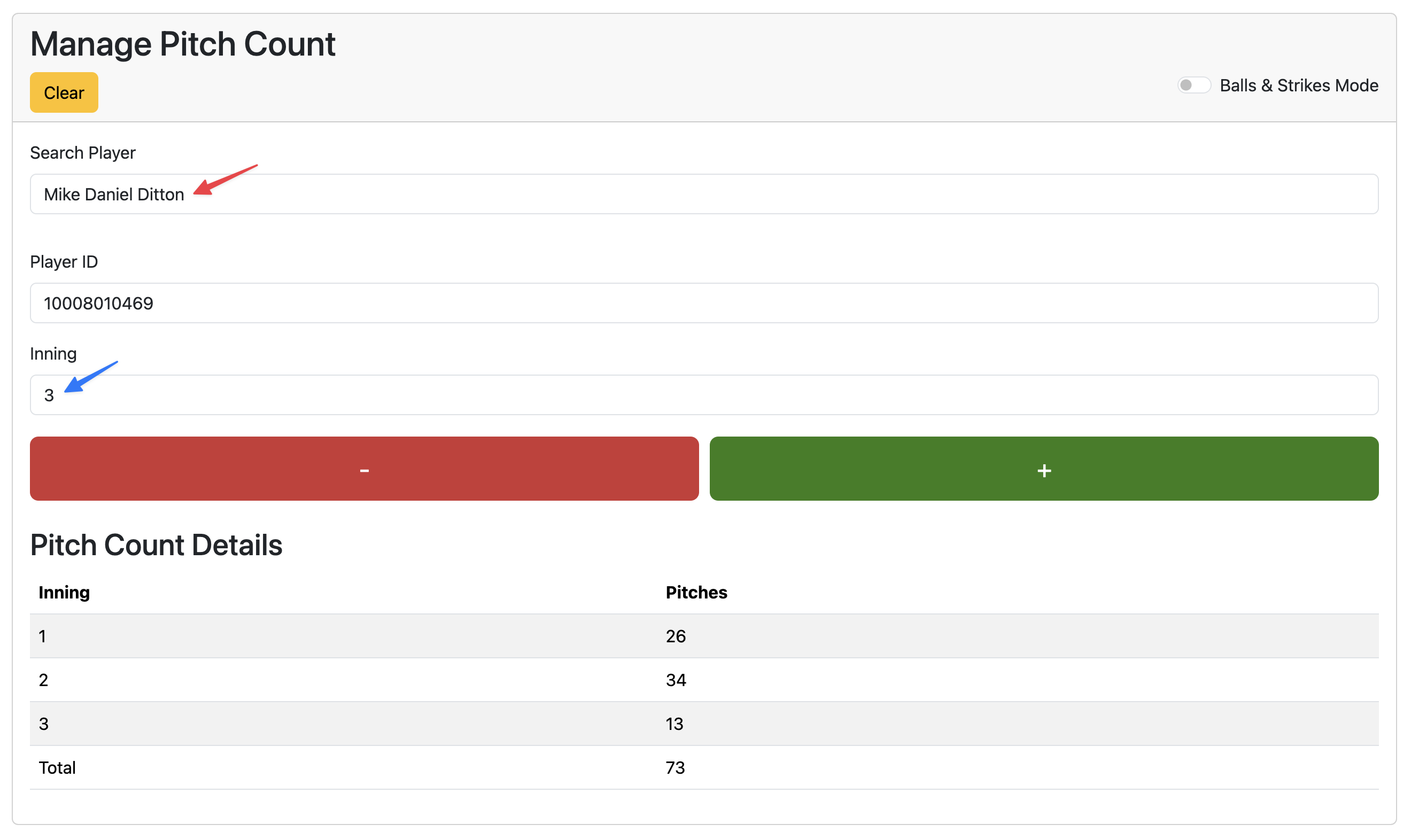
First, search for the player whose pitch count you want to track. Enter the player’s name in the search field, and the system will display a list of matching players. Select the correct player from the list to proceed. The player’s license number will be displayed in the Player ID field.
Next, input the inning number for which you want to record the pitch count. Once you’ve selected the inning, you can adjust the pitch count by clicking the (+) or (-) buttons below the inning indicator.
After an inning is completed, you can move on to the next inning by changing the value of the inning field. Continue updating the pitch count for each inning as the game progresses.
Clearing the Pitch Count
To clear the pitch count for a player, click the “Clear” button at the bottom of the screen. This will reset the pitch count for the selected player to zero. This will delete all pitch count data for the player, so use this with caution.
Balls and Strike Mode
The pitch counter also implements a balls and strikes mode for tracking the amount of balls and strikes thrown by a player. To switch to balls and strikes mode, click the “Balls & Strikes” button at the top of the screen. This will change the plus and minus buttons to balls and strikes buttons, allowing you to track balls and strikes separately.
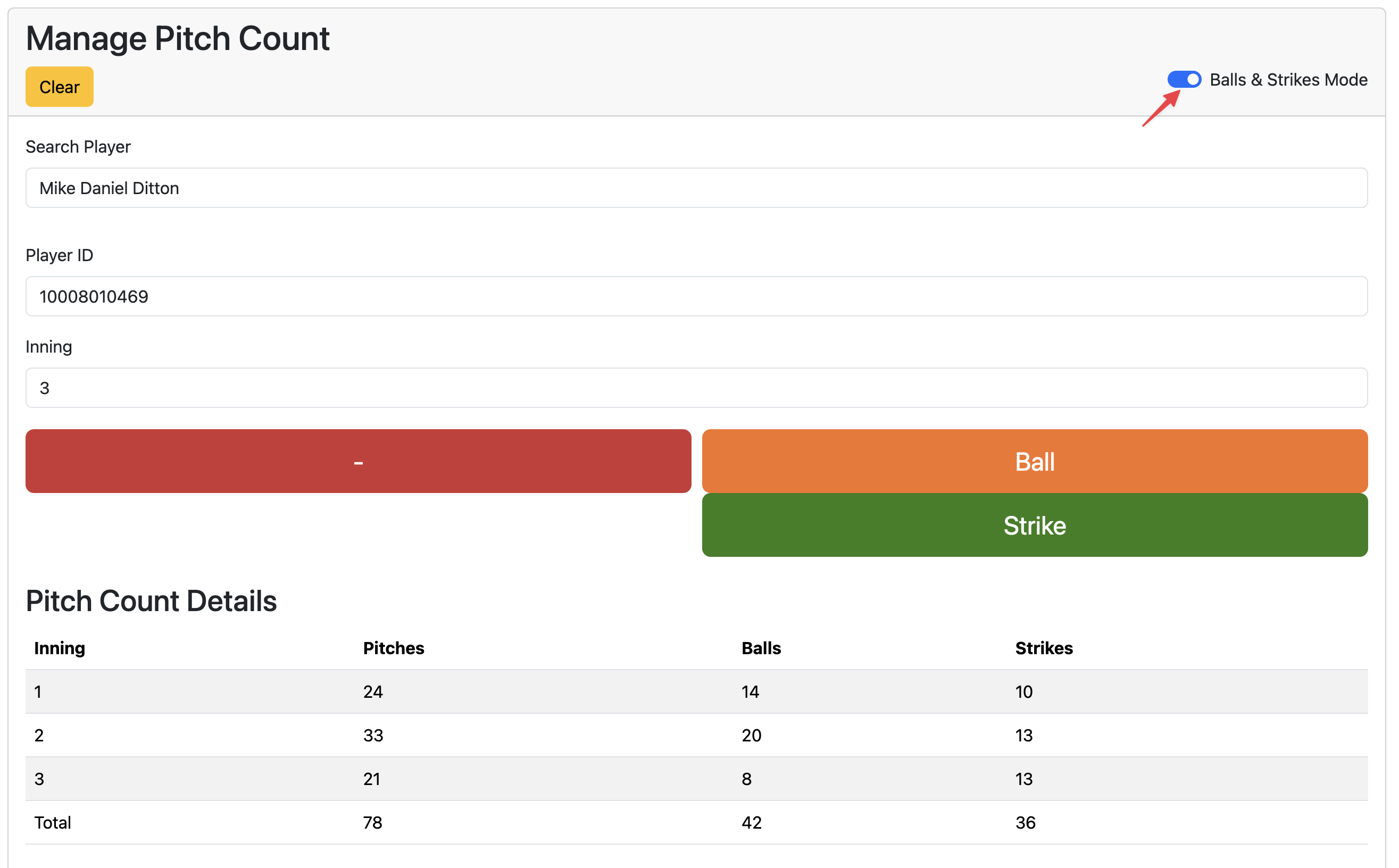
The summary section will display the total number of balls and strikes thrown by the player. This mode can be useful for tracking the player’s accuracy during the game.